 Sleep Charts
Sleep Charts
Sleep Charts
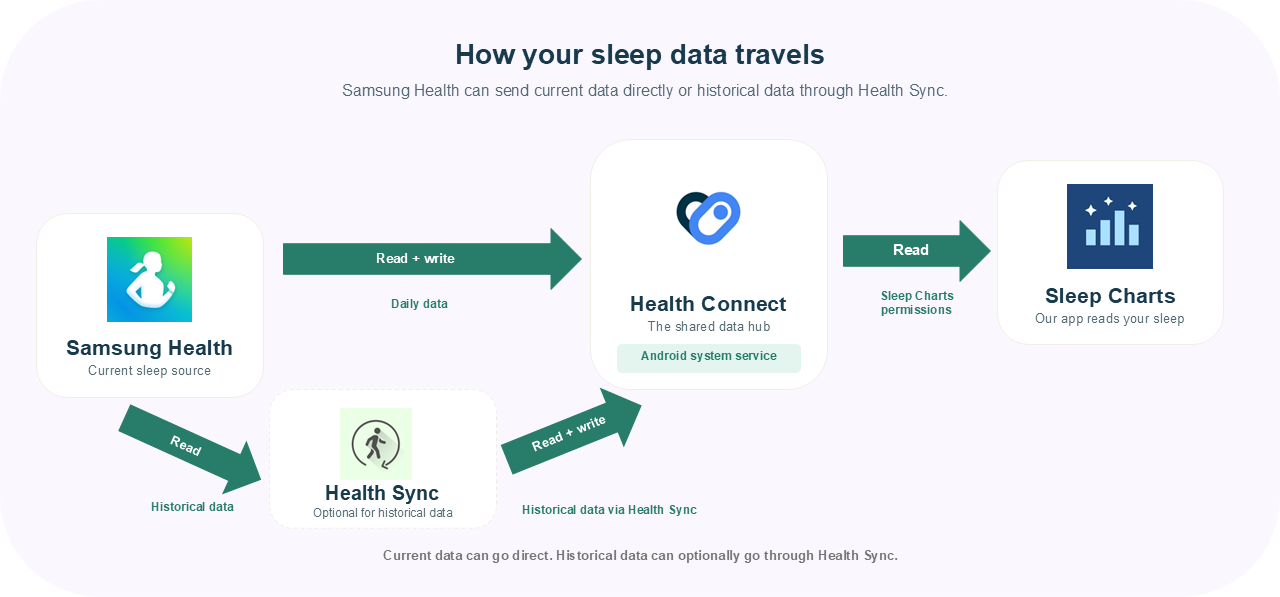
This guide shows how to use Health Sync to move older sleep data from Samsung Health into Health Connect, so Sleep Charts can read it.
Install Health Sync from the Play Store on your phone.
Open Health Sync and set Samsung Health as the source app and Health Connect as the destination.
In Health Sync, enable syncing for Sleep data so your historical sleep records can be transferred.
When Health Sync asks for permissions, allow Read + write access in Health Connect.
Run the initial sync in Health Sync. After the older records are copied into Health Connect, Sleep Charts can read them.
Health Sync can take a significant amount of time to import historical data. For example, importing around four days of data may take approximately 15 minutes. Once the data is available in Health Connect, Sleep Charts reads it for visualization.